excel导出
以往项目中前端excel导出基本都是xlsx-js实现,唯一不足的地方就是不能自定义样式,这里列举三个库进行导出,其中xlsx-js-style是基于xlsx-js再次封装,实现了样式的自定义,api与xlsx-js是一致的,exceljs相比之下更好用
xlsx-js
文档地址
https://github.com/rockboom/SheetJS-docs-zh-CN
整理封装
import * as XLSX from 'xlsx';

/**
 * 导出Excel
 * @author
 * @param excelData ExcelData
 * 如果要展示序号,表头自行添加,并处理好合并关系,同时showOrder传true
 */
export function transformDataToExcel(excelData: ExcelData) {
  const {
      data, sheetHead, sheetCell, merge, sheetBottomName = 'Sheet1',
      excelName = 'Excel', showOrder = false
  } = excelData;
  const result = [];
  if (showOrder) {
    sheetHead.unshift('序号');
  }
  result.push(sheetHead);
  data.forEach((item, index) => {
    const arr = [];
    sheetCell.forEach(item1 => {
      arr.push(item[item1]);
    });
    if (showOrder) {
      arr.unshift(index + 1);
    }
    result.push(arr);
  });
  const ws: XLSX.WorkSheet = XLSX.utils.aoa_to_sheet(result);
  // const ws: XLSX.WorkSheet = XLSX.utils.json_to_sheet(excel);
  const wb: XLSX.WorkBook = XLSX.utils.book_new();
  XLSX.utils.book_append_sheet(wb, ws, sheetBottomName);
  XLSX.writeFile(wb, `${excelName}.xlsx`);
}
export interface ExcelData {
  /**列表数字集合 */
  data: Array<any>;
  /**表头 */
  sheetHead: Array<Array<string>>,
  /**读取字段 */
  sheetCell: Array<string>,
  /**底部表名 */
  sheetBottomName?: string,
  /**表名 */
  excelName?: string,
  /**序号 */
  showOrder?: boolean,
  /**合并单元格 */
  merge?: Array<any>
}
// 设置单元格合并
ws["!merges"] = [{
    s: {//s为开始
        c: 1,//开始列
        r: 0//可以看成开始行,实际是取值范围
    },
    e: {//e结束
        c: 4,//结束列
        r: 0//结束行
    }
}];
// 行高
ws['!rows'] = [{ hpt: 30 }, { hpt: 30 }];
// 列宽
ws['!cols'] = [{ wpx: 100 }, { wpx: 200 }];
以上是使用xlsx.js的基本用法,已经可以实现导出,但是无法进行样式设置,要进行样式设置只能使用xlsx-js-style.js
xlsx-js-style.js
文档地址
https://gitbrent.github.io/xlsx-js-style/
封装
import * as XLSX from 'xlsx-js-style';

/**
 * 导出Excel
 * @author
 * @param excelData ExcelData
 * 如果要展示序号,表头自行添加,并处理好合并关系,同时showOrder传true
 */
export function transformDataToExcel(excelData: ExcelData) {
  let {
    data, sheetHead, sheetCell, merge, sheetBottomName = 'Sheet1',
    excelName, showOrder = false, headStyle, dataRowStyle
  } = excelData;
  if (!excelName) {
    excelName = `${new Date().getFullYear()}-${new Date().getMonth() + 1}-${new Date().getDate()}`
  }
  if (!dataRowStyle) {
    dataRowStyle = getStyleObject();
    dataRowStyle.fill = null;
  }
  headStyle = headStyle ? headStyle : getStyleObject();
  let result = [];
  const head = [];
  sheetHead.forEach(r => {
    const row = [];
    r.forEach(item => {
      row.push({
        v: item,
        t: "s",
        s: headStyle
      });
    })
    head.push(row);
  })
  result = [...head];
  const dataRowHeight = [];
  data.forEach((item, index) => {
    const row = [];
    dataRowHeight.push({ hpt: 25 });
    sheetCell.forEach(item1 => {
      row.push({
        v: item[item1],
        t: "s",
        s: dataRowStyle
      });
    });
    if (showOrder) {
      row.unshift(index + 1);
    }
    result.push(row);
  });
  console.log('表格数据', result);
  const ws: XLSX.WorkSheet = XLSX.utils.aoa_to_sheet(result);

  merge && (ws["!merges"] = merge);
  ws['!rows'] = [{ hpt: 25 }, { hpt: 60 }, ...dataRowHeight];
  // ws['!cols'] = [{ wpx: 200 }, { wpx: 100 }];

  // const ws: XLSX.WorkSheet = XLSX.utils.json_to_sheet(excel);
  const wb: XLSX.WorkBook = XLSX.utils.book_new();
  XLSX.utils.book_append_sheet(wb, ws, sheetBottomName);
  XLSX.writeFile(wb, `${excelName}.xlsx`);
}
/**
 * 导出时传入的对象
 */
export interface ExcelData {
  /**列表数据集合 */
  data: Array<any>;
  /**表头,按行写入,如果包含单元格合并,被合并的项传空值 */
  sheetHead: Array<Array<string>>,
  /**读取数据集合中的字段,顺序要与表头对应 */
  sheetCell: Array<string>,
  /**底部表名 */
  sheetBottomName?: string,
  /**表名 */
  excelName?: string,
  /**序号 */
  showOrder?: boolean,
  /**合并单元格 */
  merge?: Array<any>,
  /**表头样式 */
  headStyle?,
  /**数据行样式 */
  dataRowStyle?,
}
/**
 * 表格基础样式格式与默认值
 */
export function getStyleObject() {
  return {
    font: {
      name: "宋体",
      sz: 11,
      bold: false,
      color: { rgb: "000" },
    },
    alignment: {
      horizontal: "center",
      vertical: "center",
      wrapText: true
    },
    fill: { fgColor: { rgb: "0abba5" } },
    border: {
      top: { style: 'thin' },
      right: { style: 'thin' },
      bottom: { style: 'thin' },
      left: { style: 'thin' }
    }
  }
}
单个单元格设置样式
ws["A1"] = {
    // 自定义样式
    s: {
        font: {
            name: "宋体",
            sz: 40,
            bold: true,
            color: { rgb: "FFFFAA00" },
        },
        alignment: {
            horizontal: "center",
            vertical: "center",
        },
        fill: { bgcolor: { rgb: "ffff00" } },
    },
}
使用参考
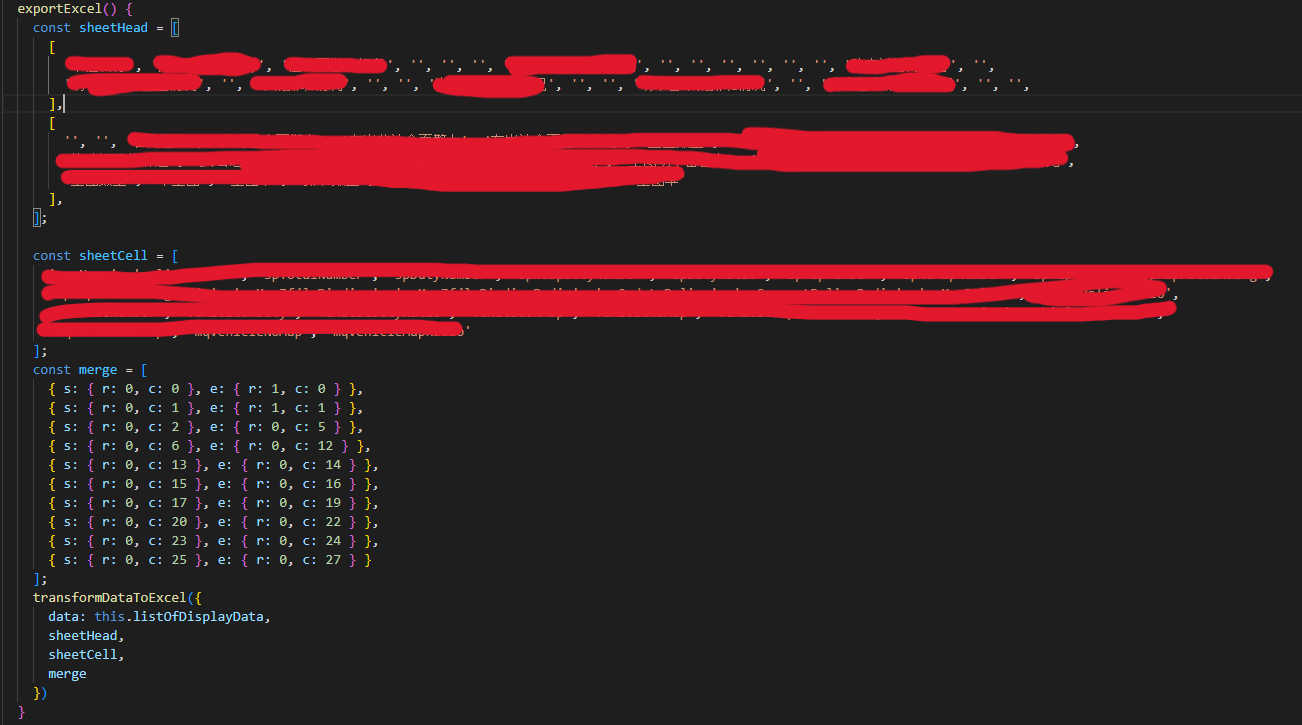
效果

数据行单元格合并参考
data.forEach((item: Array<any>, index) => {
    const row = [];
    dataRowHeight.push({ hpt: 30 });
    item.forEach((obj, cellIndex) => {

        if (obj.rowspan > 1) {
            merge.push({ s: { r: index + 1, c: cellIndex }, e: { r: index + obj.rowspan, c: cellIndex } });
        }

        row.push({ v: obj.value, t: "s", s: dataRowStyle });
    })
    if (showOrder) {
        row.unshift(index + 1);
    }
    result.push(row);
});
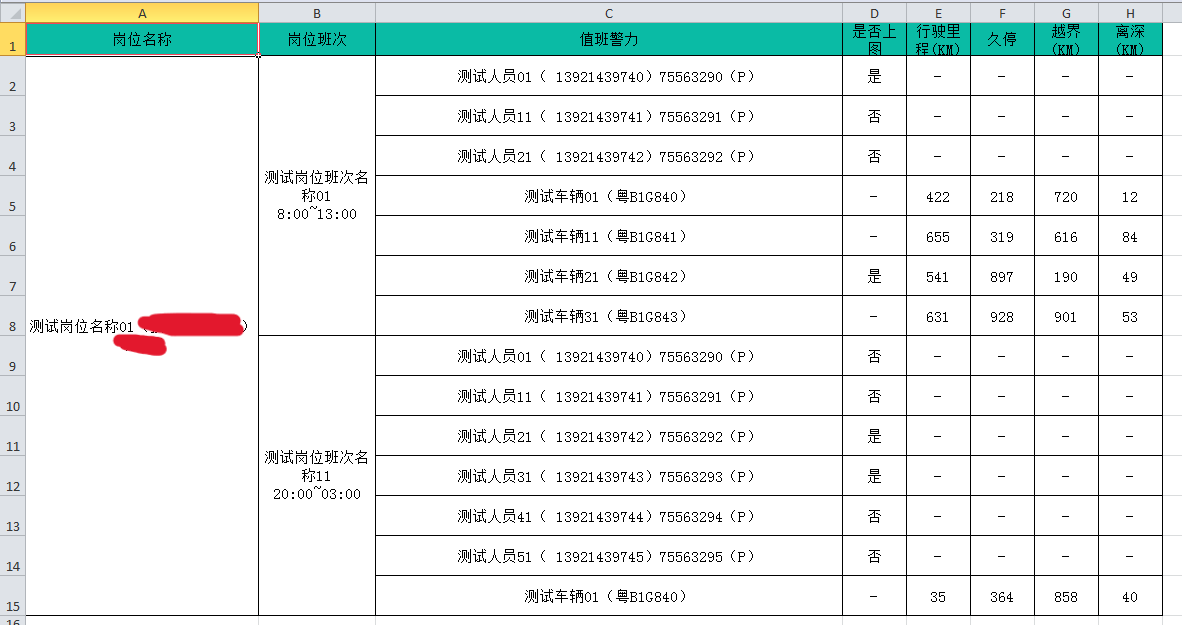
exceljs
文档地址
https://github.com/exceljs/exceljs
使用
包含了合并单元和,边框设置,宽高,图片等用法
exportExcel() {
    const tempData = [
        ['', '', '', '', '', ``, '', '', ''],
        ['', '', '', '', '', ``, '', '标题', ''],
        ['', '', '', '', '', ``, '', '', ''],
        ['', '', '', '', '', ``, '', '', ''],
        ['', '', '', '', '', ``, '', '', ''],
        ['标题:', '', '', '', '', '标题', '', '', ''],
        ['标题:', '', '', '', '', ``, '', '', ''],
        ['标题:', '', '', '', '', ``, '', '', ''],
        ['标题:', '', '', '', '', ``, '', '', ''],
        ['标题', '标题', '标题', '标题', '标题', '标题', '标题', '标题', '标题']
    ];
	// 数据处理
    console.log('保存为', tempData);
    const workbook = new ExcelJS.Workbook();
    const worksheet = workbook.addWorksheet('Sheet1');
    worksheet.addRows(tempData);
    worksheet.mergeCells('H2:I2');
    worksheet.mergeCells('H3:I3');
    worksheet.mergeCells('A6:E6');
    worksheet.mergeCells('F6:I6');
    worksheet.mergeCells('A7:I7');
    worksheet.mergeCells('A8:I8');
    worksheet.mergeCells('A9:I9');
    // worksheet.mergeCells(`A${this.crList.length + 10}:I${this.crList.length + 10}`);
    worksheet.columns.forEach((column, index) => {
        // wrapText: true
        column.alignment = { vertical: 'middle' };
        if (index === 0) {
            column.alignment.horizontal = 'center';
        }
        if (index > 0 && index <= 3) {
            column.width = 15;
        }
        if (index > 3) {
            column.width = 20;
        }
    });
    // worksheet.columns[8].alignment.horizontal = 'center';
    worksheet.getCell('H2').alignment = { horizontal: 'center', vertical: 'middle' };
    worksheet.getCell('H3').border = {
        // top: { style: 'thin', color: { argb: 'FF00FF00' } },
        // left: { style: 'thin', color: { argb: 'FF00FF00' } },
        bottom: { style: 'thin', color: { argb: 'FF000000' } }
        // right: { style: 'thin', color: { argb: 'FF00FF00' } }
    };
    worksheet.getCell('A7').alignment.horizontal = 'left';
    worksheet.getCell('A8').alignment.horizontal = 'left';
    worksheet.getCell('A9').alignment.horizontal = 'left';
    worksheet.eachRow((row) => row.height = 20);
    const img = new Image();
    img.src = 'assets/img/exportLogo.png';
    img.onload = () => {
        const canvas = document.createElement('canvas');
        canvas.width = img.width;
        canvas.height = img.height;
        const ctx = canvas.getContext('2d');
        ctx.drawImage(img, 0, 0);
        const dataURL = canvas.toDataURL('image/png');
        // 将Base64编码字符串解码为原始ASCII字符串
        const binaryData = atob(dataURL.split(',')[1]);
        const arrayBuffer = new ArrayBuffer(binaryData.length);
        const uint8Array = new Uint8Array(arrayBuffer);
        for (let i = 0; i < binaryData.length; i++) {
            uint8Array[i] = binaryData.charCodeAt(i);
        }
        const imageId = workbook.addImage({
            // @ts-ignore
            buffer: uint8Array,
            extension: 'png'
        });
        worksheet.addImage(imageId, {
            tl: { col: 3, row: 0 },
            ext: { width: 300, height: 75 }
        });

        // 导出 Excel 文件
        const fileName = `文件名.xlsx`;
        workbook.xlsx.writeBuffer().then(buffer => {
            const blob = new Blob([buffer], { type: 'application/vnd.openxmlformats-officedocument.spreadsheetml.sheet' });
            const link = document.createElement('a');
            link.href = window.URL.createObjectURL(blob);
            link.download = fileName;
            link.click();
        }).catch(error => {
            console.error('导出 Excel 文件时出错:', error);
        });
    };
    img.onerror = () => {
        console.error('图片加载失败');
    };
}